/ 6 min read
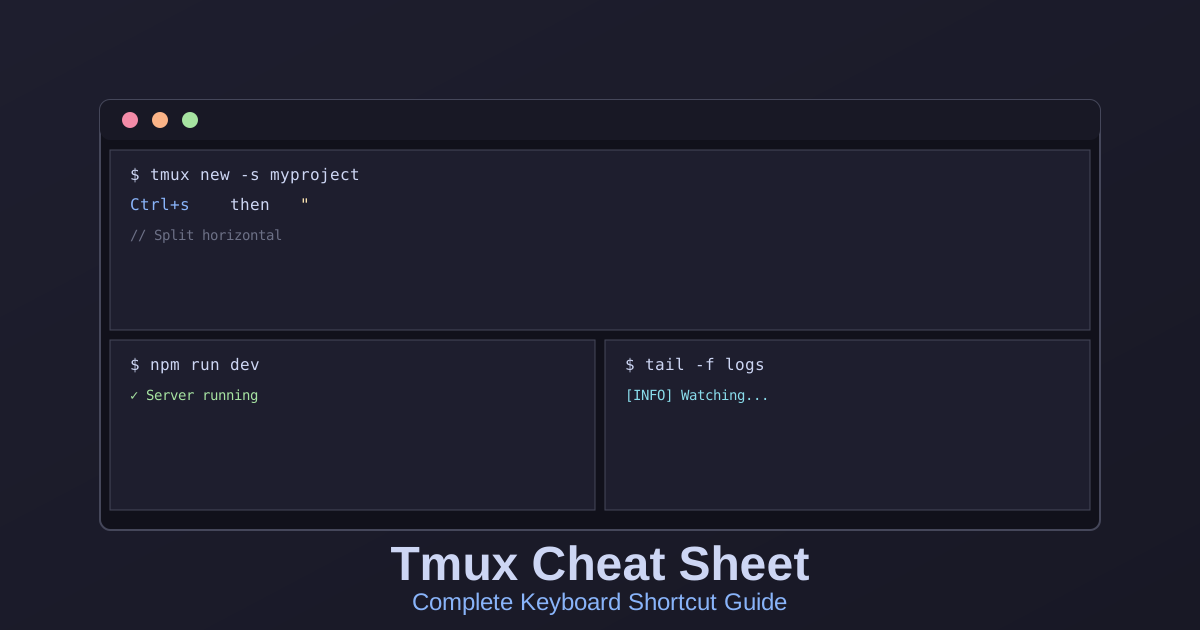
Tmux Cheat Sheet: Complete Keyboard Shortcut Guide
This is a complete reference guide for tmux based on my actual configuration. Everything you need to know about sessions, windows, panes, and navigation in one place.
Understanding the Prefix
Prefix Key: Ctrl+s
Almost every tmux command starts with the prefix. Press Ctrl+s, release, then press the next key.
Visual Indicator: When you press the prefix, the session name in the status bar turns red.
Session Management
Creating Sessions
# Create new sessiontmux
# Create named sessiontmux new -s myproject
# Create session with specific window nametmux new -s myproject -n editor
Listing Sessions
# From terminaltmux ls
# From inside tmuxCtrl+s then s
Attaching to Sessions
# Attach to last sessiontmux attach
# Attach to specific sessiontmux attach -t myproject
# Attach to session (short form)tmux a -t myproject
Detaching from Sessions
# Keyboard shortcutCtrl+s then d
# Detach all clients from sessiontmux detach -a
Renaming Sessions
# From inside tmuxCtrl+s then $
# From terminaltmux rename-session -t oldname newname
Killing Sessions
# Kill specific sessiontmux kill-session -t myproject
# Kill all sessions except currenttmux kill-session -a
# Kill all sessionstmux kill-server
Switching Between Sessions
# Interactive session listCtrl+s then s# Use arrow keys or j/k to navigate, Enter to select
# Switch to last sessionCtrl+s then L
# Switch to next sessionCtrl+s then (
# Switch to previous sessionCtrl+s then )
Window Management
Creating Windows
# Create new windowCtrl+s then cSwitching Between Windows
# Next window (repeatable)Ctrl+s then Ctrl+l
# Previous window (repeatable)Ctrl+s then Ctrl+h
# Jump to window by numberCtrl+s then 0-9
# Last used windowCtrl+s then l
# Interactive window listCtrl+s then w
# Find window by nameCtrl+s then f
Renaming Windows
Ctrl+s then ,Killing Windows
# Kill current window (with confirmation)Ctrl+s then &
# Kill window without confirmationCtrl+s then : then type "kill-window"
Moving Windows
# Move current window to position 5Ctrl+s then : then type "move-window -t 5"
# Swap window with nextCtrl+s then : then type "swap-window -t +1"
# Swap window with previousCtrl+s then : then type "swap-window -t -1"
Pane Management
Creating Panes
# Split horizontally (top/bottom)Ctrl+s then "
# Split vertically (left/right)Ctrl+s then %
Navigating Between Panes
# Vim-style navigationCtrl+s then h    # Move leftCtrl+s then j    # Move downCtrl+s then k    # Move upCtrl+s then l    # Move right
# With vim-tmux-navigator pluginCtrl+h    # Move left (no prefix needed)Ctrl+j    # Move downCtrl+k    # Move upCtrl+l    # Move right
# Cycle through panesCtrl+s then o
# Go to last active paneCtrl+s then ;
# Show pane numbers (then press number to jump)Ctrl+s then q
Resizing Panes
# With mouse (enabled in config)# Just drag the pane borders
# With keyboardCtrl+s then : then type "resize-pane -D 5"    # Down 5 linesCtrl+s then : then type "resize-pane -U 5"    # Up 5 linesCtrl+s then : then type "resize-pane -L 5"    # Left 5 columnsCtrl+s then : then type "resize-pane -R 5"    # Right 5 columns
Zooming Panes
# Toggle zoom (fullscreen current pane)Ctrl+s then z
# Status bar shows "zoom" indicator when active
Moving Panes
# Swap with next paneCtrl+s then }
# Swap with previous paneCtrl+s then {
# Rotate panes forwardCtrl+s then Ctrl+o
# Move pane to new windowCtrl+s then !
# Break pane into new windowCtrl+s then : then type "break-pane"
# Join pane from another windowCtrl+s then : then type "join-pane -s 2.1"    # Join pane 1 from window 2
Pane Layouts
# Cycle through preset layoutsCtrl+s then Space
# Available layouts:# - even-horizontal# - even-vertical# - main-horizontal# - main-vertical# - tiled
Killing Panes
# Kill current pane (with confirmation)Ctrl+s then x
# Kill pane without confirmationexit    # or Ctrl+d in the shell
Copy Mode (Scrollback)
Entering Copy Mode
# Custom keybindingAlt+k
# Default keybindingCtrl+s then [
Navigation in Copy Mode
# Vim-style movementh, j, k, l         # Left, down, up, rightw, b               # Next word, previous word0, $               # Start of line, end of lineg, G               # Top of buffer, bottom of bufferCtrl+u, Ctrl+d     # Page up, page down
# Arrow keys also work↑, ↓, ←, →
Searching in Copy Mode
/ # Search forward? # Search backwardn # Next matchN # Previous matchCopying Text
Space # Start selectionEnter # Copy selection and exit copy modeEsc # Cancel selectionq # Exit copy modePasting Text
Ctrl+s then ] # Paste most recent bufferCtrl+s then = # List all buffers and chooseConfiguration Management
Reloading Config
# Custom keybindingCtrl+s then r
# Manual reloadCtrl+s then : then type "source-file ~/.tmux.conf"
Viewing Current Settings
# Show all optionsCtrl+s then : then type "show-options -g"
# Show all key bindingsCtrl+s then ?
Command Mode
Entering Command Mode
Ctrl+s then :Useful Commands
:setw synchronize-panes on # Type in all panes simultaneously:setw synchronize-panes off # Disable synchronized typing:set mouse off # Disable mouse:set mouse on # Enable mouse:list-keys # Show all keybindings:list-commands # Show all commandsStatus Bar Information
My config shows:
Left Side:
- Session name (red when prefix active, green otherwise)
- Current command running
- Current directory (shortened)
- Zoom indicator
Center:
- Window list with numbers
- Current window highlighted in peach
Right Side:
- Battery percentage (red if ≤10%)
- Online/offline status
- Date and time
Quick Reference Card
Sessions
| Action | Command |
|---|---|
| New session | tmux new -s name |
| List sessions | tmux ls or Ctrl+s s |
| Attach | tmux a -t name |
| Detach | Ctrl+s d |
| Rename | Ctrl+s $ |
| Kill | tmux kill-session -t name |
Windows
| Action | Command |
|---|---|
| New window | Ctrl+s c |
| Next window | Ctrl+s Ctrl+l |
| Previous window | Ctrl+s Ctrl+h |
| Jump to window | Ctrl+s 0-9 |
| Rename window | Ctrl+s , |
| Kill window | Ctrl+s & |
| List windows | Ctrl+s w |
Panes
| Action | Command |
|---|---|
| Split horizontal | Ctrl+s " |
| Split vertical | Ctrl+s % |
| Navigate | Ctrl+s h/j/k/l |
| Zoom toggle | Ctrl+s z |
| Kill pane | Ctrl+s x |
| Swap panes | Ctrl+s { or } |
| Rotate panes | Ctrl+s Ctrl+o |
| Cycle layouts | Ctrl+s Space |
Copy Mode
| Action | Command |
|---|---|
| Enter copy mode | Alt+k |
| Search forward | / |
| Search backward | ? |
| Start selection | Space |
| Copy selection | Enter |
| Paste | Ctrl+s ] |
| Exit | q |
System
| Action | Command |
|---|---|
| Reload config | Ctrl+s r |
| Command mode | Ctrl+s : |
| List keys | Ctrl+s ? |
| Show time | Ctrl+s t |
Common Workflows
Basic Development Setup
# 1. Create sessiontmux new -s myproject
# 2. Split for editor and terminalCtrl+s then "
# 3. Navigate to bottom paneCtrl+s then j
# 4. Split for logsCtrl+s then %
# Result: Editor (top), terminal (bottom-left), logs (bottom-right)
Multiple Projects
# Create sessions for each projecttmux new -s frontendCtrl+s then d
tmux new -s backendCtrl+s then d
tmux new -s databaseCtrl+s then d
# Switch between themCtrl+s then s    # Interactive list
Monitoring Multiple Services
# 1. Create sessiontmux new -s monitoring
# 2. Create window for each serviceCtrl+s then c    # Repeat for each service
# 3. Rename windowsCtrl+s then ,    # Name: "nginx"Ctrl+s then n    # Next windowCtrl+s then ,    # Name: "postgres"# etc.
# 4. Switch between windowsCtrl+s then Ctrl+h/l
Pair Programming
# Person 1: Create sessiontmux new -s pairing
# Person 2: Attach to same sessiontmux attach -t pairing
# Both see and control the same session
Tips
- Mouse is enabled - Use it while learning, gradually switch to keyboard
- Prefix indicator - Session name turns red when prefix is active
- Zoom is your friend -
Ctrl+szto focus on one pane - Name everything - Named sessions and windows are easier to find
- Detach freely - Sessions persist, you can always reattach
- Copy mode -
Alt+kto scroll and search history - Synchronized panes - Type in multiple panes at once with
:setw synchronize-panes on
Plugins
Installed via TPM (Tmux Plugin Manager):
- catppuccin/tmux - Mocha theme
- vim-tmux-navigator - Seamless Vim/tmux navigation
- tmux-battery - Battery status
- tmux-online-status - Network status
TPM auto-installs on first run.